Introduction
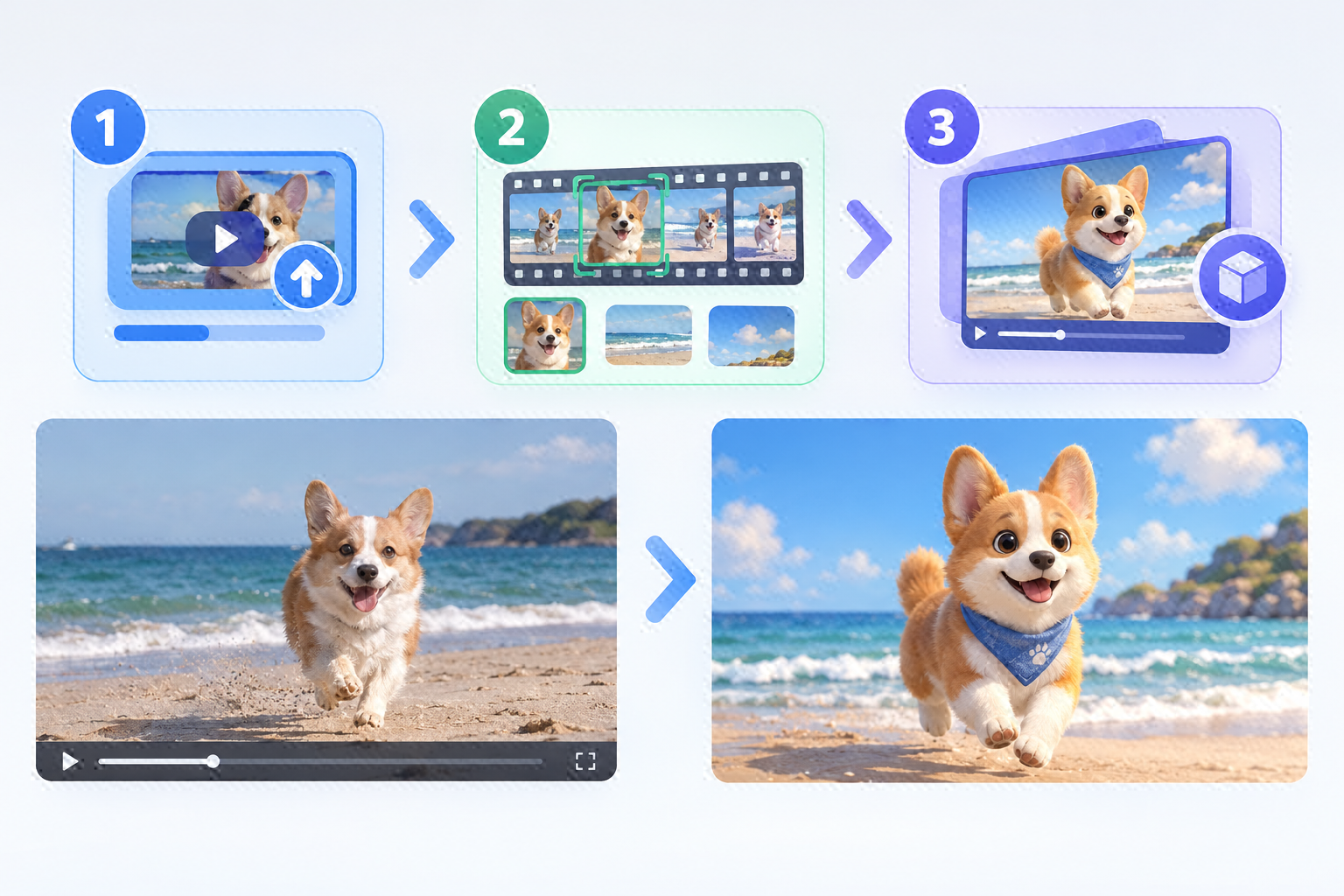
I dug up a travel video I shot two years ago. The image quality was ordinary, and it had been sitting in my album unpublished ever since. Recently I tried something new: upload the original clip, let the system automatically extract scenes, subjects, and camera movement, then convert it into a 3D-style short film with one click. No modeling required, no frame-by-frame parameter tuning—it saved a lot of hassle. Below I'll walk through the full workflow and give an honest before-and-after comparison, so anyone who wants to practice can follow along.
Step 1: Prepare Your Material—Pick an Old Video Where Things Are Clearly Visible
The starting point here isn't the technology—it's choosing the right clip. I used footage of walking along a beach, shot handheld, with rocks, clouds, and a person walking through the frame. I chose it for two reasons: clear lighting and a well-defined subject. Both directly affect how accurately the system recognizes things later. If the original is too dark, shaky, or has the subject blending into the background, the extraction step is prone to errors. For a first attempt, I recommend cutting a clip of about 30 seconds rather than throwing in a whole long video right away—it saves waiting time and makes comparing results easier afterward.
Step 2: Upload and Extract—What the System Does Behind the Scenes
After you upload the original, the system first identifies the scenes and human subjects in the frame, then segments the footage by shot and extracts camera movement along the way. This is a key part of the whole workflow, because it determines the "skeleton" of the 3D effect that follows. In my beach clip, the person walks through the frame and the background has depth layers. Once the system separates the person from the background, the spatial relationships have a foundation. You don't need to build models or adjust anything frame by frame—just wait for it to finish. One caveat: for clips with fast, complex motion or people frequently entering and leaving the frame, extraction results may be less stable. I'll come back to this in the results comparison.
Step 3: Generate and Composite—One-Click 3D-Style Short Film
Once extraction is done, it's time to generate. The system produces 3D effects shot by shot, then composites everything into a complete short film. My original had an ordinary handheld feel; after generation, it had a sense of spatial depth somewhat like an animated film: the person and background are more clearly separated, and depth-of-field changes are more pronounced. The whole process comes down to four steps: upload video → identify scenes and subjects → generate 3D effects shot by shot → composite the short film. Four steps, no manual adjustment—well suited to anyone who wants to see results quickly. After generating, I suggest watching the whole thing once, then comparing it with the original to get a clear sense of what changed.
Step 4: Results Comparison—What Improved and What to Watch Out For
Here's my honest take. What improved: in the original, the distant rocks and clouds looked flat, while in the 3D version you can see front-to-back relationships and clearer spatial layers; the separation between subject and background is stronger, and depth-of-field shifts are more obvious. What to watch out for: there's occasionally a slight smudging around the edges of the person, and things get less stable with fast, complex motion. So this approach suits shots like landscapes, slow motion, or people walking—for highly dynamic footage, try a short clip first rather than running an entire action sequence through it.
Step 5: Practice Tips—Try Two or Three Times to Find Your Rhythm
If you want to give it a go, start with an old clip of about 30 seconds, choosing a segment with clear lighting and a well-defined subject for more natural results. After generating, compare it with the original; if you're not satisfied, swap in another clip and try again. Two or three attempts usually get you into a good rhythm. Don't expect the first one to be perfect—treat it as a tool for quick experimentation, and you'll find it easier to get good output.
Closing Call to Action
If you also have a few ordinary-quality old videos sitting unpublished in your album, try cutting a 30-second clip with clear lighting and running it through the cycle: upload → extract → generate → composite. Then compare it with the original. Start with landscapes, slow motion, or people walking, and once you're happy with the results, gradually move on to longer footage.